
Good news! 23andMe has decided (hopefully permanently) that they do want to be in the genetic genealogy business instead of only in the health genetics business. They recently announced some new tools, including something called Ancestor Reconstruction, that I am still learning about and will write about after I’ve had more time to explore it. But for now, the exciting news is that you can once again download segment data you share with your matches (or many matches). Here’s how to do it:
Step 1: Log on (two-factor authentication)
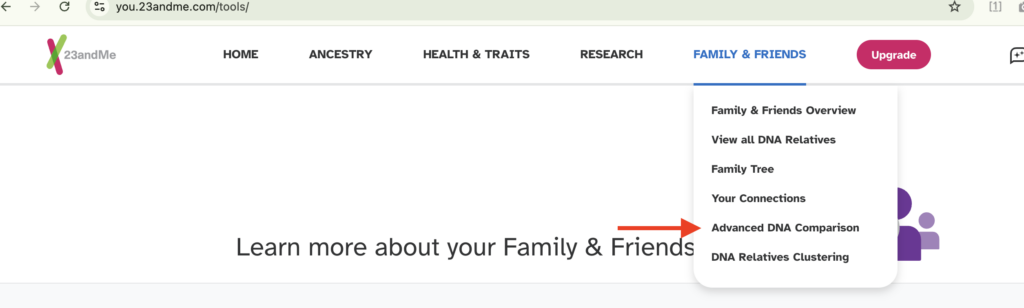
Step 2: In the top menu, scroll over or click on “Family and Friends” and choose “Advanced DNA Comparison.”
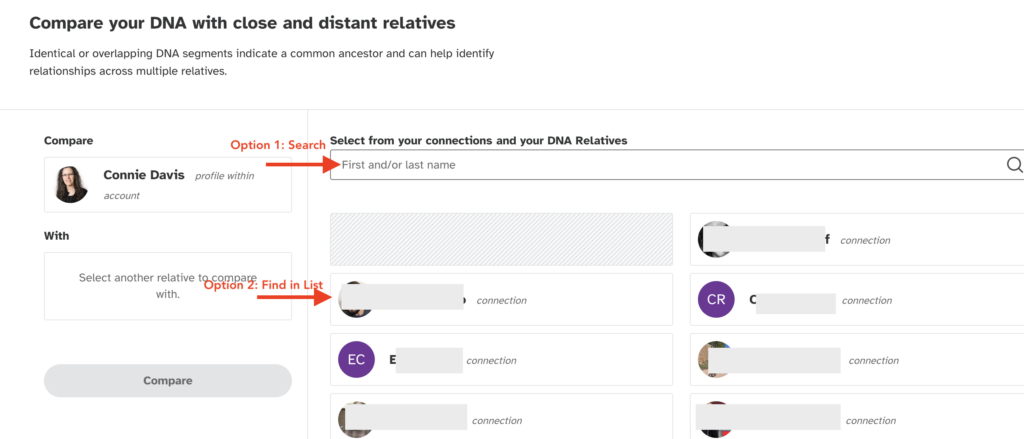
Step 3: Find the match you are interested in. You have 2 choices. You can use the search box and type their name or find them in the list below.
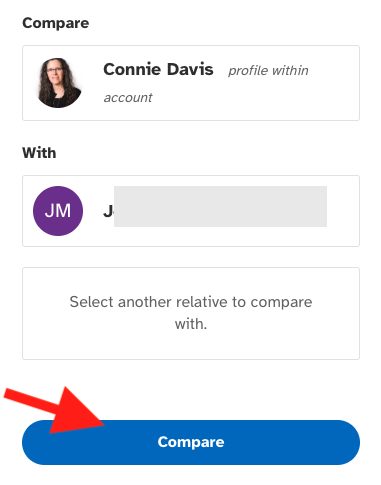
Step 4: Click on their box and they will be placed under your name on the left. You can add more people to this box if you want. Most of the time I just want to compare myself to one person.
Step 5: Scroll down to the bottom of the window that comes up until you get to the table with information about your segments.
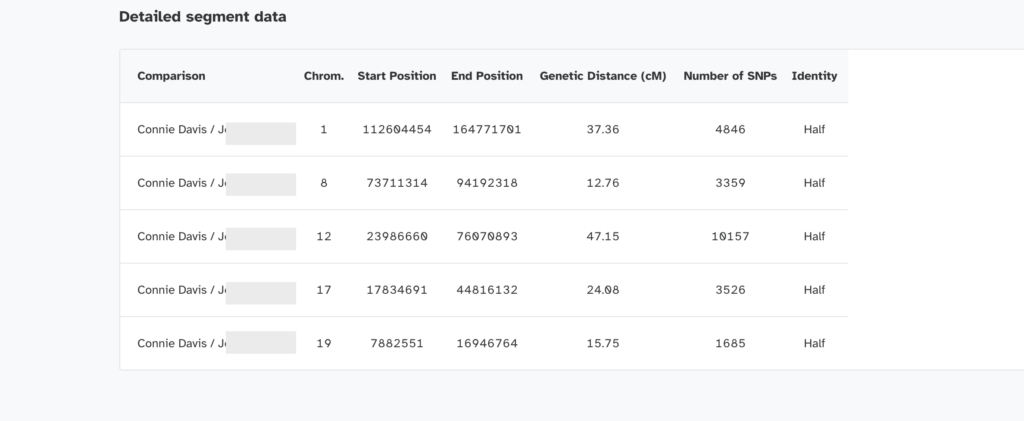
Step 6: You could screenshot this data. To extract the data, you can drag your mouse from the upper left corner to the lower right and select copy (Command-C on a Mac. I don’t speak PC, but I think it’s control C on a PC). You can then paste that into any spreadsheet program.
Use this information to create a chromosome map in DNApainter and to trace your segments to individual ancestors. This has the potential to reach further back than typically possible with autosomal DNA.